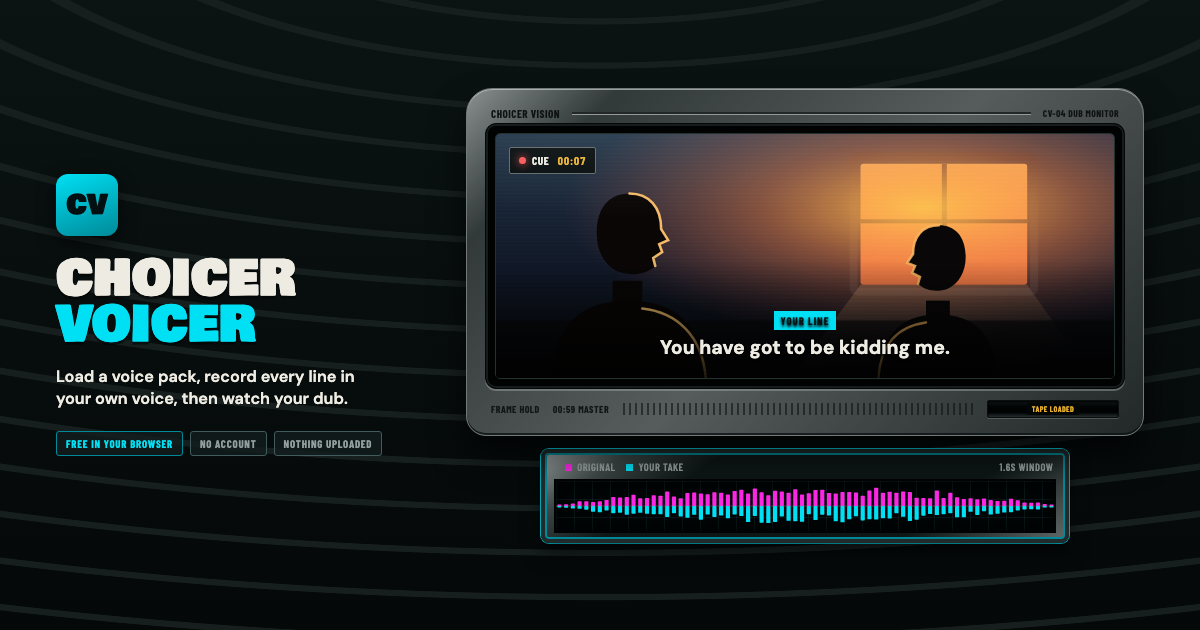
Choicer Voicer is a free voice-over game that runs in the browser, so any Mac can play it without an install. Open the Choicer Voicer studioin Safari, Chrome, Edge, or Firefox, allow the microphone, and you can have a scene dubbed in a few minutes.
Does it work on macOS?
Yes. There is no .dmg and no App Store listing, and Apple silicon and Intel Macs behave the same way. Safari handles it, so there is no reason to install Chrome for this. One thing worth knowing before you import anything: packs live in the storage of whichever browser you imported them in. A pack you added in Safari will not appear on the rack in Chrome.
What you need
- Safari, Chrome, Edge, or Firefox.
- A microphone. The one built into a MacBook is good enough to start.
- Headphones. Without them the original line leaks into your take through the speakers.
- A voice pack, which is a ZIP you import once. Star Wars, Toy Story, SpongeBob, Family Guy, and Twilight are the ones to start with.
Recording your first dub
- Import a pack. The tape rack starts empty, so choose Upload pack ZIP and drop the file on the import panel. It unpacks into browser storage and stays on the rack, so after that you just pick it from Now dubbing.
- Accept the microphone prompt the first time you record. To use a different input, open Choose mic in the right-hand panel.
- Press Hear clip for the original delivery. Listen to the pacing rather than the words, since coming in half a beat late is what makes a take sound off.
- Press Start recording, or tap R. The video plays silently as a lip-sync cue. Your take plays back straight away, re-recording overwrites it, and retries are unlimited.
- Check the waveform under the monitor. Your take is drawn over the original: sitting to the right means you came in late, much taller means you are louder than the scene.
- When every line has a take, Watch dub plays the scene in your voice and Export video renders it to a file.
Allowing the microphone on macOS
Recording fails quietly if either permission is missing: macOS has to let the browser use the mic, and the browser has to let the site use it. Start inSystem Settings → Privacy & Security → Microphone and check that your browser is switched on, then set the site permission and reload.
Safari
With the studio open, go to Safari → Settings for This Website and set Microphone to Allow. The same list lives under Safari → Settings → Websites → Microphone.
Chrome and Edge
Click the icon at the left of the address bar, then allow the microphone for the site. In Chrome you can also open chrome://settings/content/microphone and remove it from the blocked list.
Firefox
Click the padlock in the address bar, clear any blocked microphone permission, then reload and accept the prompt when it comes back.
Takes are never uploaded. They stay in your browser's storage on your own Mac.
Getting a better take on a MacBook
The built-in mic is fine. Where you sit matters more than what you record with.
- Sit closer to the mic than feels natural, then perform slightly quieter. It reads as present instead of shouted.
- Avoid bare kitchens and bathrooms. They add reverb you cannot remove afterwards.
- On AirPods or a USB mic, select it under Choose mic. The browser does not always follow the macOS default input.
- Dub the whole pack once before going back to perfect any single line.
FAQ
Do I need to download anything on my Mac?
No app and no extension. The only download is a voice pack ZIP.
Is it free?
Yes, and there is no account to create.
Which browser works best?
Chrome and Edge handle the longer export renders more smoothly. Safari is fine for recording.
Can I make a pack from my own video?
Yes. The Pack Maker marks each line on a timeline, extracts the audio and frames locally, and generates a ZIP ready to import.
Open the studio and dub one scene end to end, or read about the voice over game first.