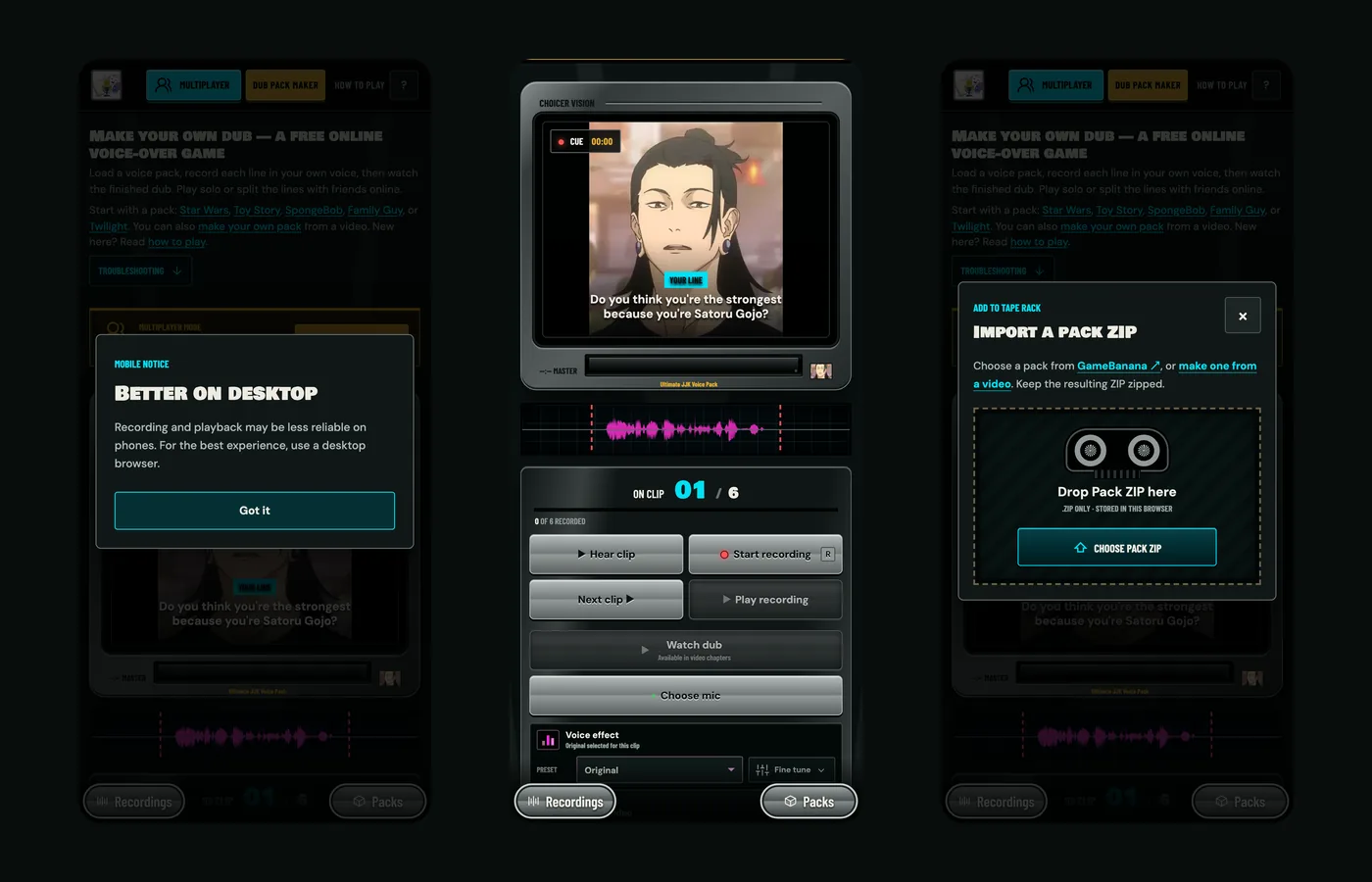
For the best mobile experience, openthe Choicer Voicer studioin the latest version of Chrome on Android or Safari on iPhone and iPad. No installation is required. You will see a notice suggesting the desktop version; tap Got it to continue. It is a recommendation, not a restriction.
Here is the five-step guide to using the Studio on your phone:
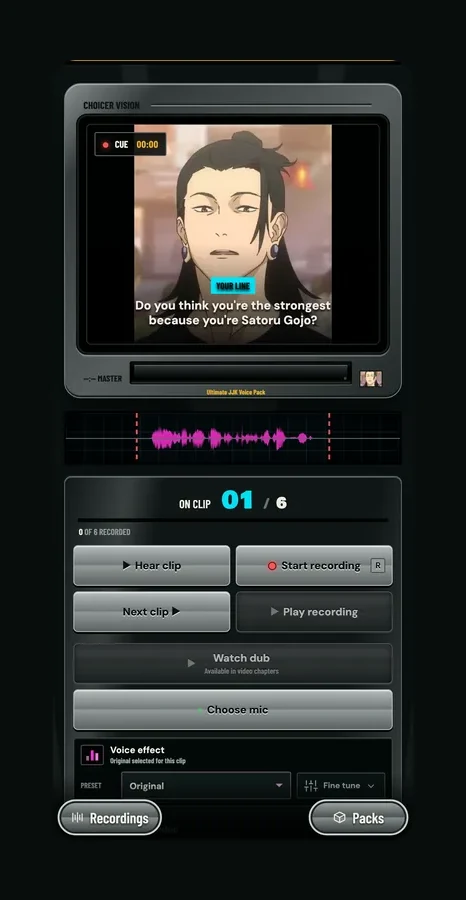
1. Download a Voice Pack ZIP
The Studio does not host packs directly. OpenVoice packs, pick a scene, and tap Download the pack to open its GameBanana page. Download the file and keep it zipped. iOS saves it to Files, while Android usually saves it to Downloads.
- Tip: Choose smaller packs on mobile. Unpacking a large ZIP uses more memory and storage, which can make a lower-end phone lag or crash.
- Private browsing: Use a normal tab if you want your packs and recordings to remain available. A private session may limit or clear the Studio's browser storage when it ends.
2. Import the Pack
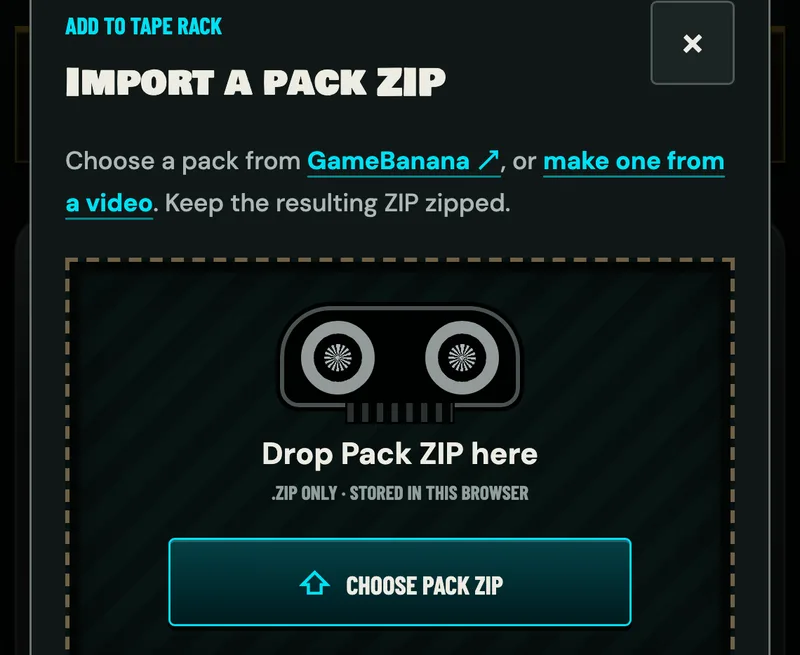
Tap Import a pack ZIP on the empty screen, or use the UPLOAD ZIP tile in the tape rack if you have imported a pack before. Ignore Drop Pack ZIP here; drag and drop is for desktop. Tap Choose Pack ZIP, select the file, and the Studio will unpack it into browser storage for future use.
3. Allow Microphone Access
Tap Choose mic, then select Allow when prompted. If you blocked access before, enable microphone permission in your browser's site settings and refresh the page.
4. Record Line by Line
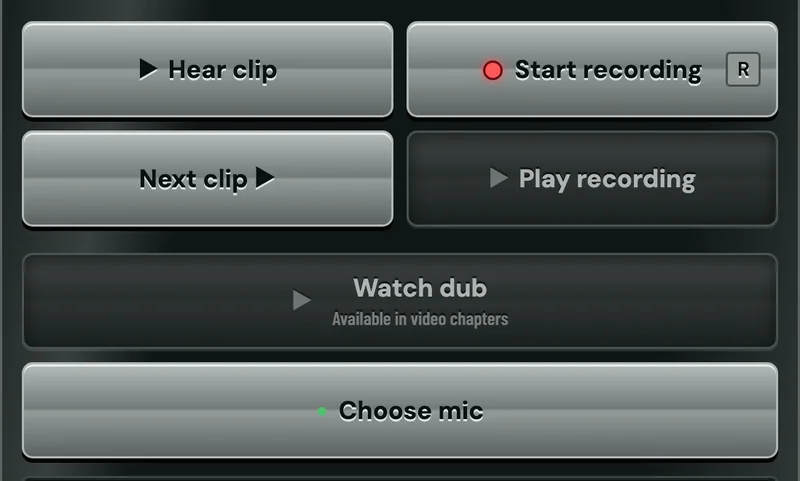
- Tap Hear clip to listen to the original line.
- Tap Start recording and deliver your line.
- Compare your waveform with the original. Matching the timing and rhythm will make the dub sound more natural.
- Tap Next clip and repeat for the remaining lines.
5. Preview and Export
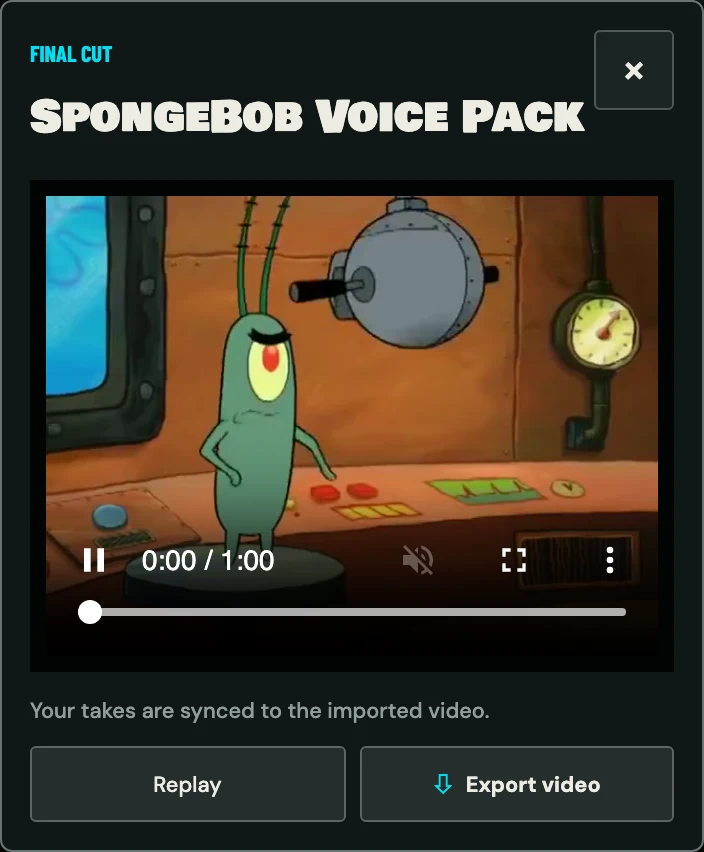
Once every line has a take, Watch dub will unlock, and Export video will generate the final file.
- Export time: H.264 packs may use fast export. Other packs use a real-time fallback, which takes about as long as the scene and may take longer on a slower phone. Keep the screen awake and the tab open until the export finishes.
- Resolution: During real-time fallback, mobile output is limited to 640 pixels on the long edge. Desktop fallback supports up to 1920 × 1080. Fast H.264 export may keep the source video's original resolution.
- Troubleshooting: If preview or export fails, close other browser tabs and try again. If it still fails, restart the browser, use a shorter pack, or export on a more powerful device.
Managing Recordings and Packs
Recordings (bottom-left)
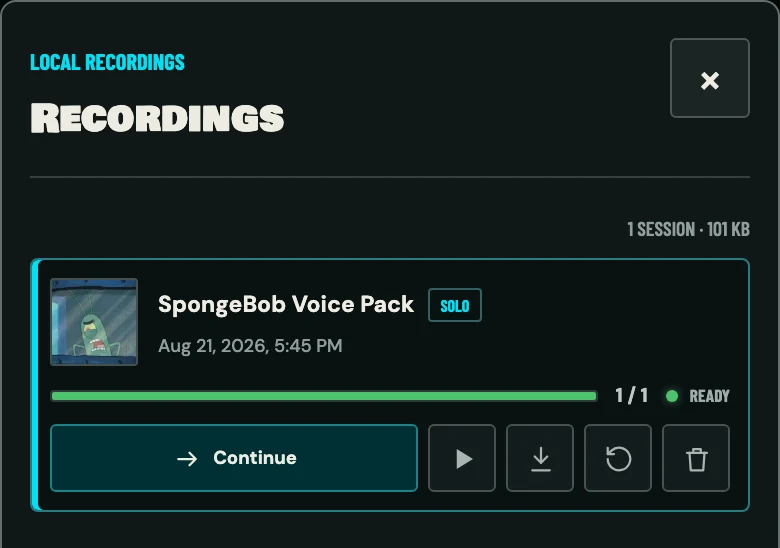
Once you save your first clip, the session appears here with the pack name, last-saved time, and progress. You can resume an unfinished dub, start a separate session from clip 1, or delete the session. For a completed video pack, you can also preview the full dub or download the video.
Packs (bottom-right)
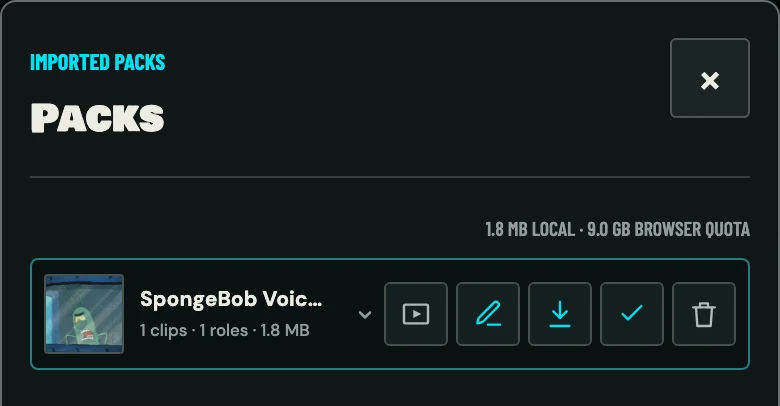
View all imported voice packs with their clip count, role count, and storage size. Tap a pack to inspect its clips or listen to the original lines. You can load it into the Studio, preview its source video, download a copy of the ZIP, or delete it. Video packs can also be opened in Pack Maker for editing. Deleting a pack also removes its saved recordings from this browser.